

April 19, 2013
Question:
How do you get the depth to your lettering and the effects inside the type?
Answer:
Let’s start out with the fact that their are numerous ways to approach text effects and custom type. Over the years I have amassed a library of approaches I have either found, stumbled upon or through hard work (the majority of the techniques) discovered. This is actually a very simple process that anyone can do. Their are not only several ways to accomplish this (I am covering just one way) but their are several other advanced techniques that use this approach as the foundation!
In addition, I am also a fan of learning things from the ground up. When I started in custom lettering, custom type and typography I approached it from the original disciplines used years ago (I still use them today!). This usually consisted of a piece of paper, compass, ruler, pencil and both your creativity combined with a disciplined hand. This process involved charting out each character and the word as a whole. It involved measuring out the X height, stem of each letter for consistency, character width, letter axis and on and on. This gave me a HEALTHY respect that their are shortcuts BUT in order to reach new levels I would need a SOLID foundation. I suggest that anyone seeking quick fixes move on but anyone wanting to build their knowledge base and achieve pieces that actually represent the craft DO THE WORK!
Steps:
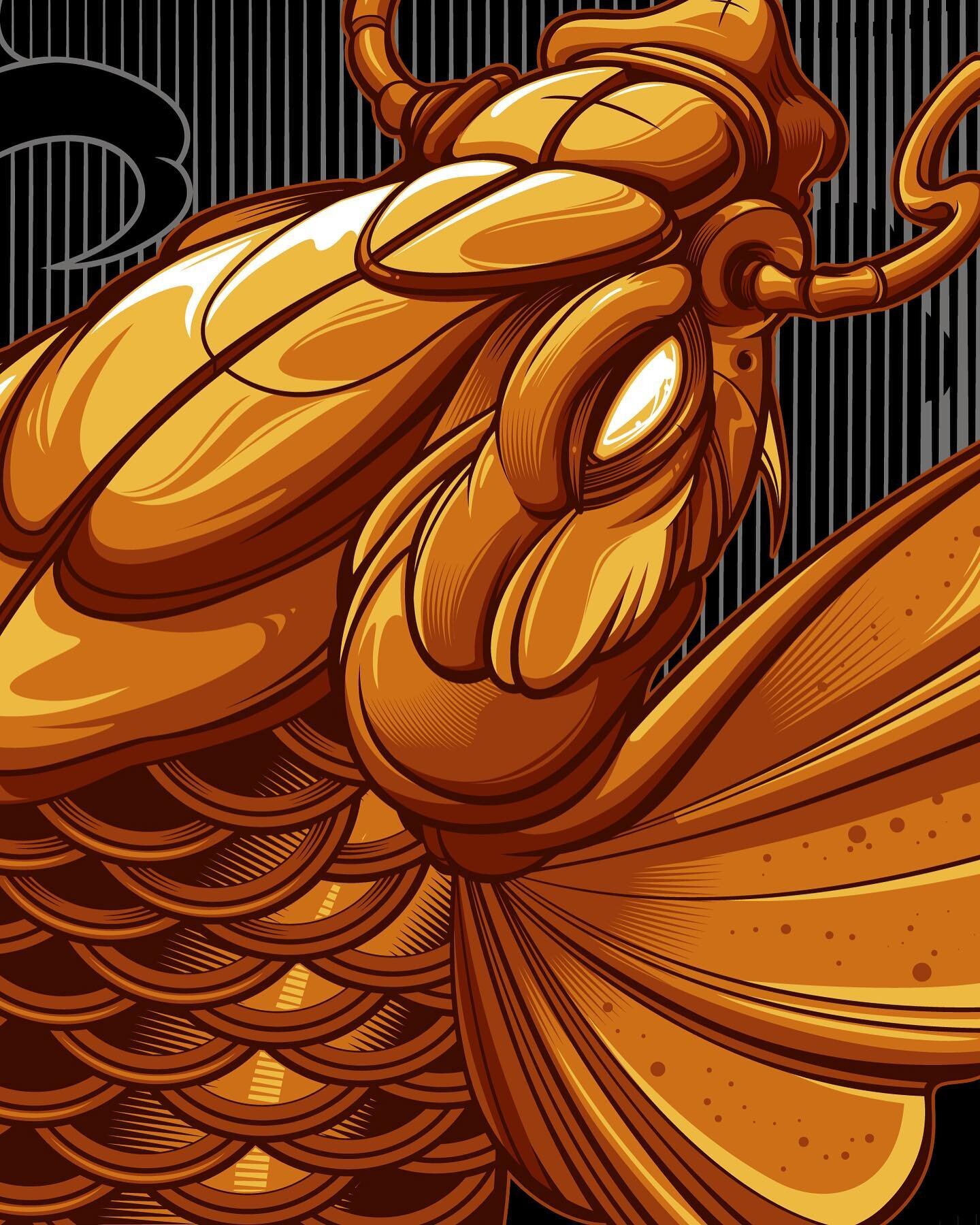
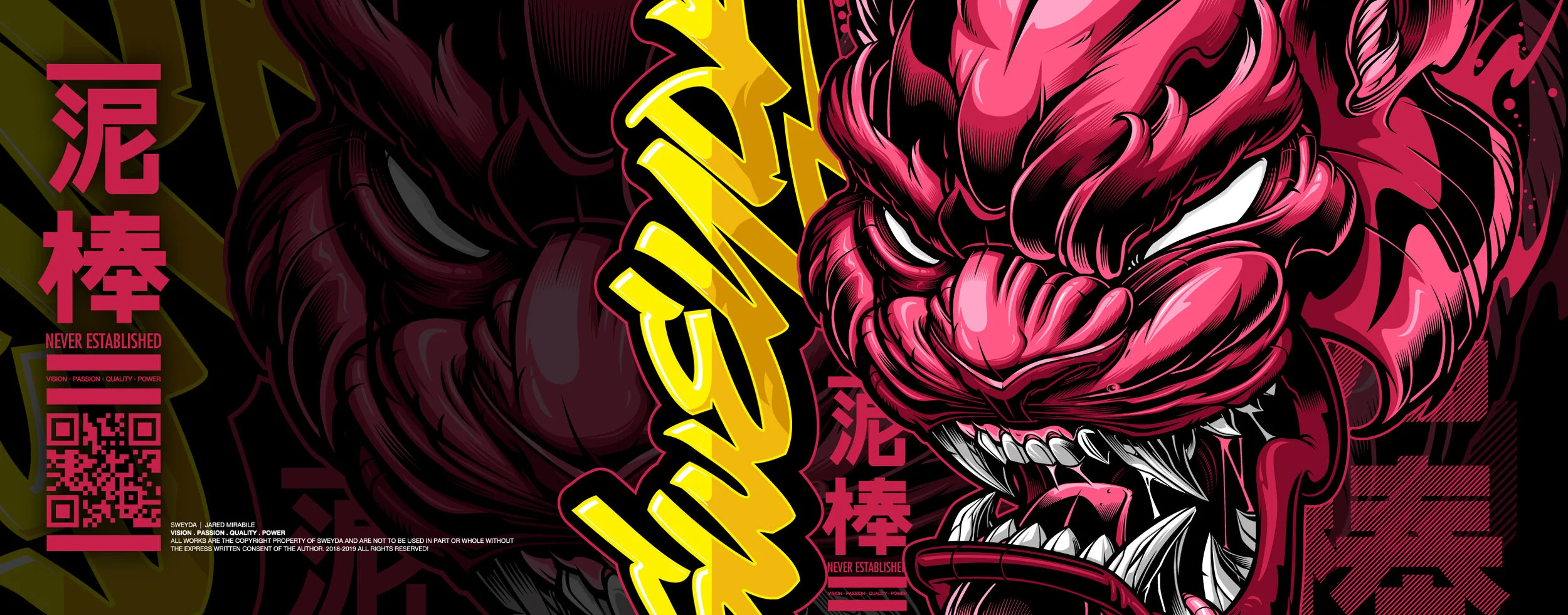
In order to see each step of the process just click on the above banner, wait for the post to load and then click through each slide. Their are 6 slides in total!
#1. Start with any single letter. In this tutorial I will use the letter H. Normally I would apply all the following techniques to an entire word but thought it easy to just use a single letter! Any style letter will work!
#2. Here I will create four individual layers. The top layer is the smallest white H. The second layer is a larger (black) H. The third is a white H again and the last is a black H. To create a larger letter I do the following. Create the size stroke you like. Now go to OBJECT > EXPAND (make sure FILL and STROKE are checked) and hit OK. Now go to the PATHFINDER palette and select UNITE! Do this for each layer.


#3. To create the shadow on the inside of the letter you must first decide where your light source will be. This will ensure that the final piece looks like it has consistency. What I do is duplicate the top layer (the white first layer) turn it black. I then duplicate the layer again and offset it (however deep or shallow you want). Then go to the PATHFINDER palette, select both letters and click on MINUS FRONT. (RED Arrow indicates light direction)
#4. I then create a pattern. In this case it is a bunch of rectangles that are one shape (ADD in the PATHFINDER palette). The amount of “fills” or “patterns” is endless. I then either use a mask or I place the pattern over top of the letter, select both the letter and the pattern and go to the PATHFINDER palette and select MINUS FRONT. This will give you the following look.
#5. Now I can create some depth by duplicating the last layer several times and offsetting it down and to the right. I do this as many times as I need to get the desired depth.